Main Interface
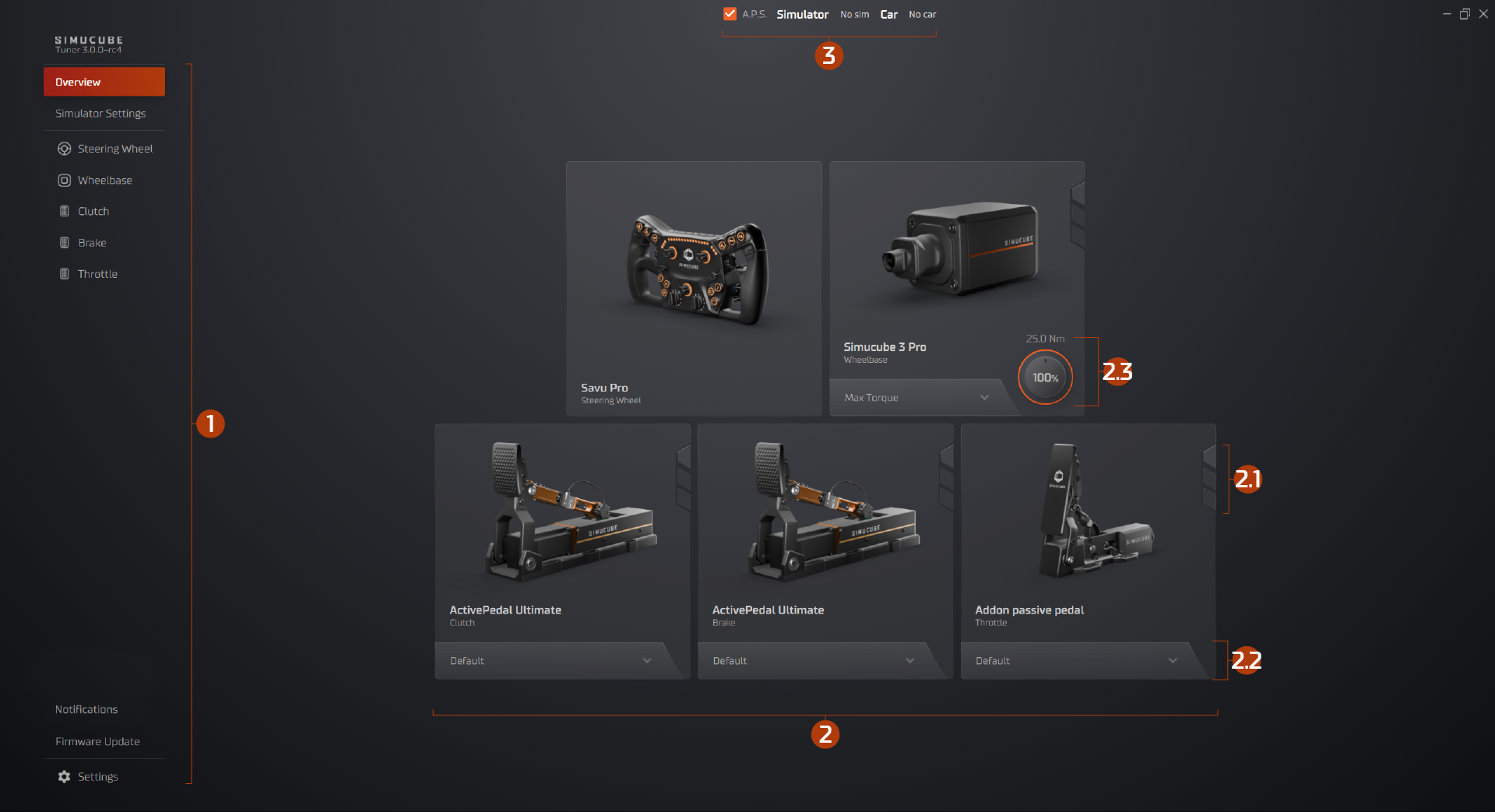
1. Main Navigator
Located on the left side, shows all available views and also all connected supported devices. Click on a device to access its configuration.
Overview
- The landing page of the Tuner software.
Simulator Settings
- A way to control the RPM LED lights for cars that have been driven recently.
Connected Devices
- Shows which devices are currently active or were active at some point. By closing the Tuner software when there are no devices connected, the list will be empty.
Notification
- When a notification appears in the top middle of the view and has been ‘ignored’, it will appear under this menu. A small indicator will show how many have been ignored.
Firmware Update
- Manage which firmware to update for any supported device.
Settings
- General, Overlay for Simucube 3, Wireless Steering Wheel connections, and About the software.
2. Device Sections In Overview
Each connected device will appear on the left side of the Main Navigator and in its own section in Overview. When the device is clicked, the Configuration view for selected profile will open where the adjustments can be made. Selected profile can be seen in Overview on the bottom button of that device, and inside the Configuration view on top right corner. Profiles are device-specific and can be switched manually or automatically.
2.1 Automatic Profile Switch
Read more about how Automatic Profile Switch works.
2.2 Device Profile
This shows a profile currently selected for this device and, if clicked, will open a profile selection window which shows all profiles currently available for that device. Read more about Profile Handling.
2.3 Adjuster Knob
Some devices, such as Simucube 3, allow torque adjustment on the selected profile.
3. Automatic Profiles
The top middle section in any view shows the status of the Automatic Profiles. This feature enables users, as the name suggests, to switch profiles automatically when a specific simulator and car are being used.
The Automatic Profiles works when you launch a simulator session. Tuner will detect which car and simulator you are using. It will also remember the previously used car after the sim is closed.
Checkmark next to Simulator Title
If you want to experiment with e.g. different sets of profiles, and don't want your existing Automatic Profile setup getting messed up, you can uncheck the checkmark, which will stop the Automatic Profiles functionality until it is checked again.