Profile Handling
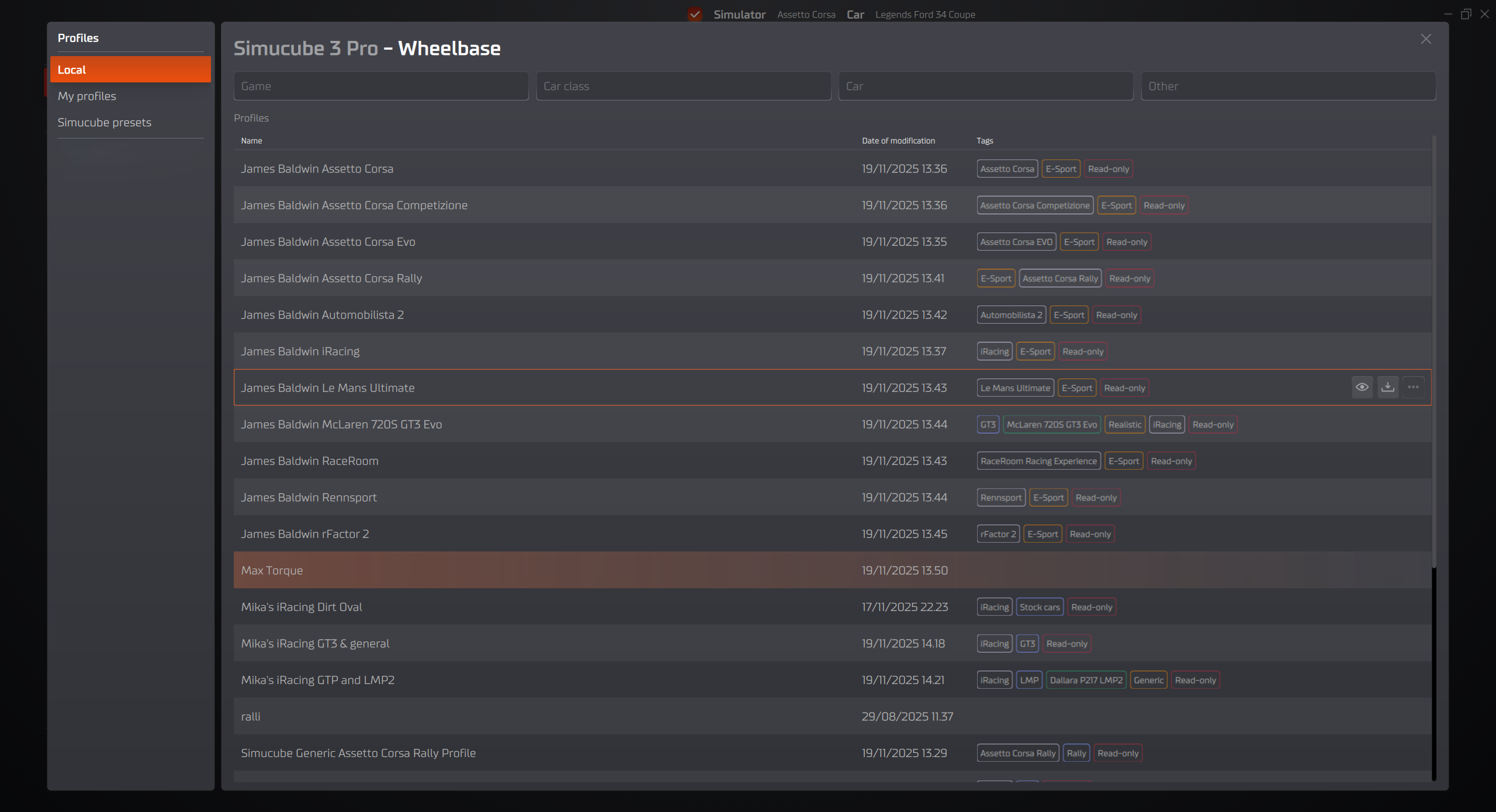
One way to open the Profile Selector is to click from the Main Interface the Device Profile button . See the image 2.2 section. Another way is through Configuration view of the device and clicking the top right corner where the profile name is, and click the "load profile".
Note
Profile Selector will shows all available profiles for the selected device. You can see which device is currently selected from the title highlighted by white color.
Collections
Collections are located on the left side of the Profile Selector window.
-
Local Contains all profiles on you desktop computer.
-
My Profiles Contains all profiles that you have created.
-
Simucube Presets Contains all the default profiles, templates and even driver profiles.
Collections feature is there for organization purposes and will be expanded in near future to support also your own collections.
Filters
Filter are used to narrow down the search result. When you select any filter, the tag list will appear. The selected tag will appear in the "filter tags" section and it can be removed from there by simply clicking on the tag in the "Tag Filter".
List of profiles
The profile list is split into three (3) different sections: Name, date of modification and tags.
- Orange background profile indicates that this profile is currently being used on the selected device.
- Orange border is indicator for profile being focused. Useful if keyboard user.
- When hovering over the profile three icons will appear of far right side.
- Eye - opens up and window which showcases the profile details, such as description and rest of the tags, if they didn't fit in the profile selector.
- Arrow Down - will apply the profile to the device. TIP: You may also double click the profile for the same effect.
- Three dots - extends the menu for more options, such as: delete, export etc.